



Rebalancing & Trading
Keep your portfolio on target by rebalancing your holdings, or place an individual buy or sell order for a single stock.
Overview
Once you've created a portfolio, there are two main ways to manage what's inside it. Rebalancing lets you reset the mix of all your holdings at once by choosing a target for each one, then reviewing the trades the app will place to get you there. Trading lets you buy or sell a single ticker on its own. This article covers both.
Before you begin
- You need a portfolio you own, with holdings in it, to rebalance.
- Rebalancing places live trades to match your new targets, so have your intended mix in mind before you start.
- Trades happen during market hours; some orders may settle slightly differently depending on market movement.
Steps
Rebalance your portfolio
Rebalancing means adjusting how your money is split across your holdings so they match the mix (your "target weights") you want. For example, if a stock has grown to a bigger share of your portfolio than you'd like, rebalancing trims it back and tops up the others.
-
Open the portfolio you want to manage, then tap the Rebalance button in the bottom-right corner. This opens the "Rebalance Portfolio" screen. If the button says "Checking Active Rebalances" or is greyed out, a rebalance is already running - wait for it to finish before starting a new one.
-
Read the instruction near the top: "Adjust the percentage allocation for each ticker. Total must not exceed 100%." Below it you'll see a card for each holding, showing its ticker, current price, and an input box for its target.
-
Choose how you want to set your targets using the button at the top:
- By Percentage lets you type each holding's share as a percentage. The running total must stay at or under 100%.
- By Amount lets you type each holding's target as a dollar figure. The running total must stay at or under your portfolio's total value.
- Tapping this button switches between the two modes and converts your numbers for you.
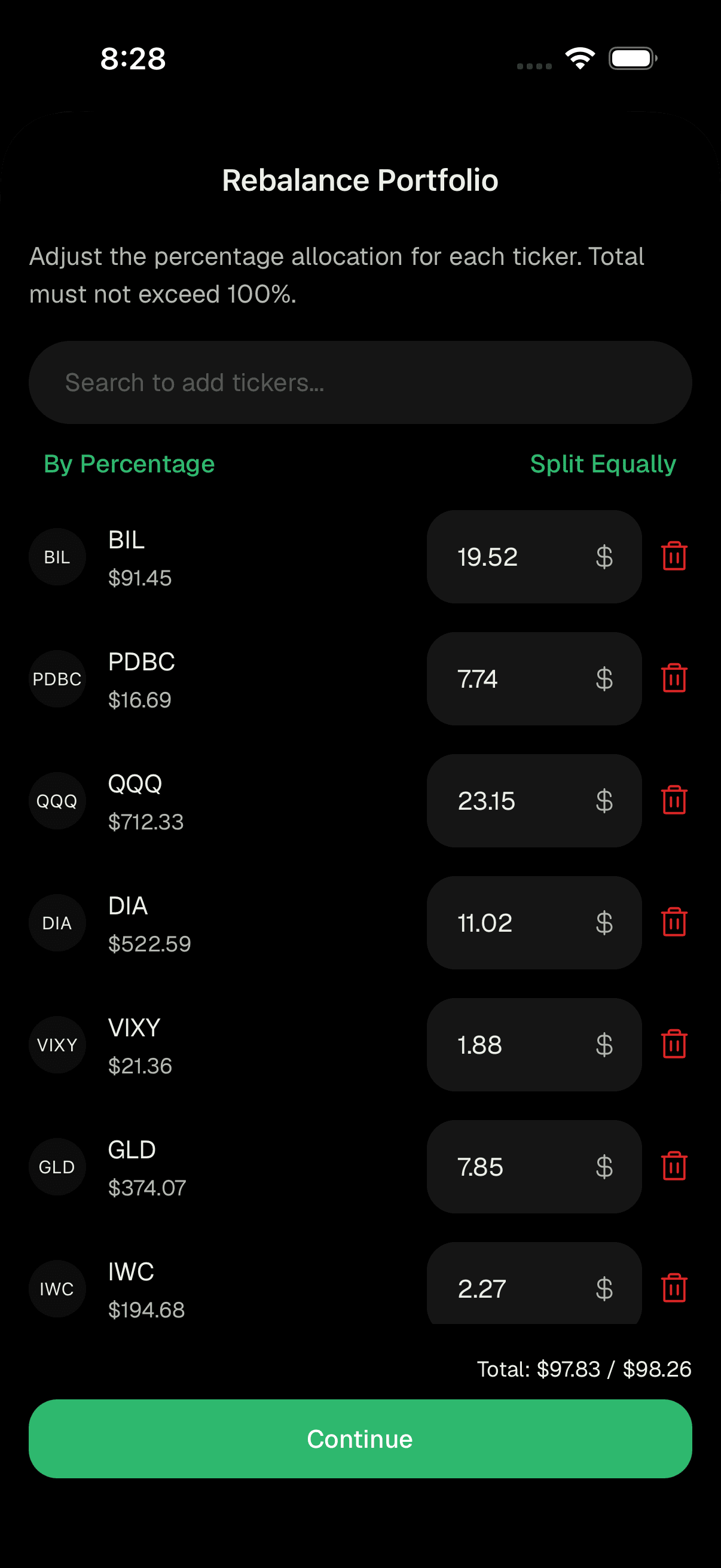
Setting target weights for each holding -
Enter a target for each holding, or use the shortcuts. Tap Split Equally to divide everything evenly across your holdings (while it's on, the individual boxes are locked; tap it again to edit freely). To add a holding that isn't there yet, use Search to add tickers… at the top and tap a result. To remove a holding, tap the trash icon next to it.
-
Watch the Total line at the bottom. It shows your running total against the limit (for example "Total: 100% / 100%," or a dollar total against your portfolio value). If it turns red, you've gone over the limit and need to reduce something.
-
When your total is within the limit, tap Continue. This takes you to the "Review Allocations" screen.
-
On Review Allocations, check the proposed changes. Each holding shows its current value moving to its new target. Two notes at the top remind you that "All orders are Market orders" and that the "Final allocation may slightly vary due to market volatility." A market order buys or sells right away at the current market price.
-
If something looks off, tap Edit Weights to go back and adjust. When you're happy, tap Rebalance Portfolio.
-
Wait for confirmation. When it's done you'll see a "Success" message. Tap OK to finish.
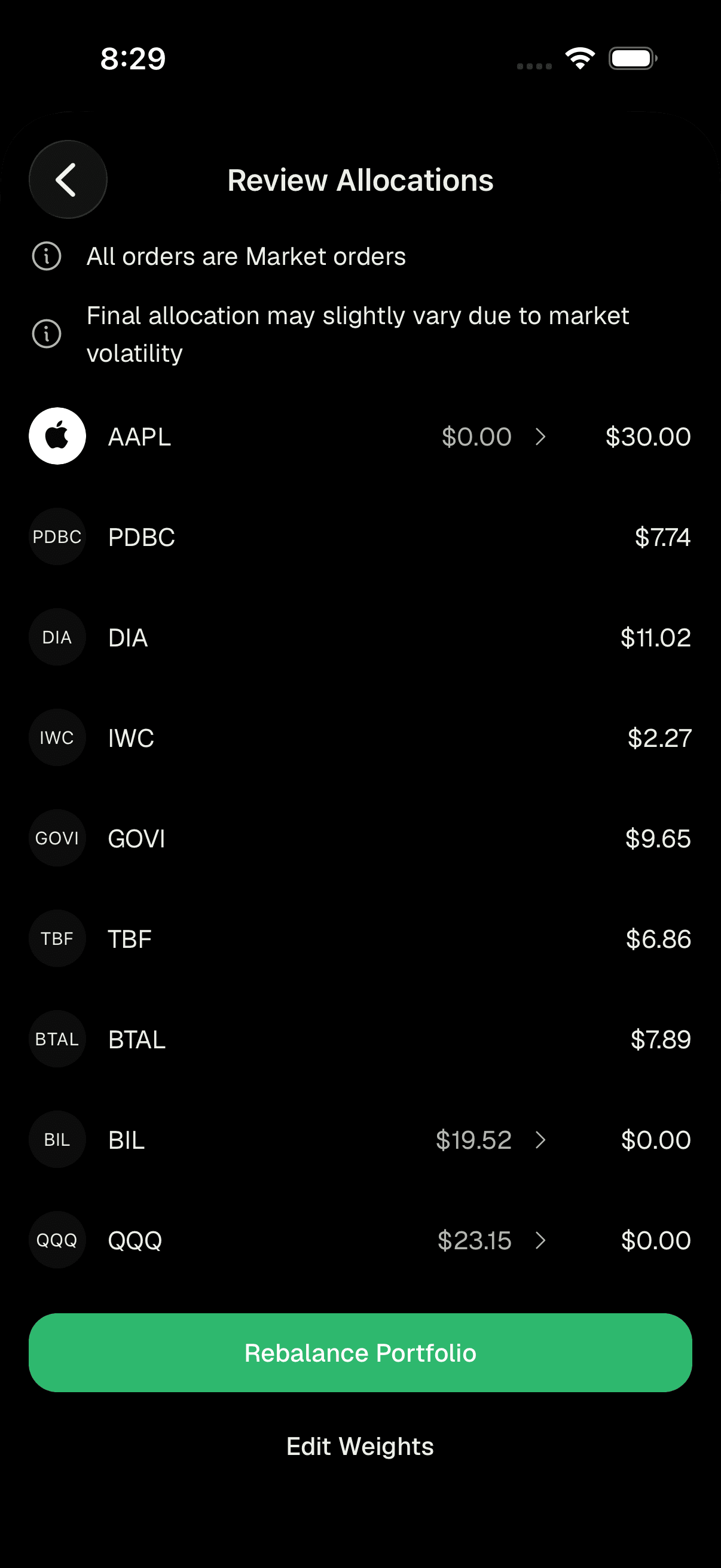
Reviewing proposed trades before confirming
Place an individual trade (buy or sell)
Use this when you want to act on just one stock rather than resetting your whole mix. You reach the trade screen from a ticker inside your portfolio; the screen title shows the company name.
-
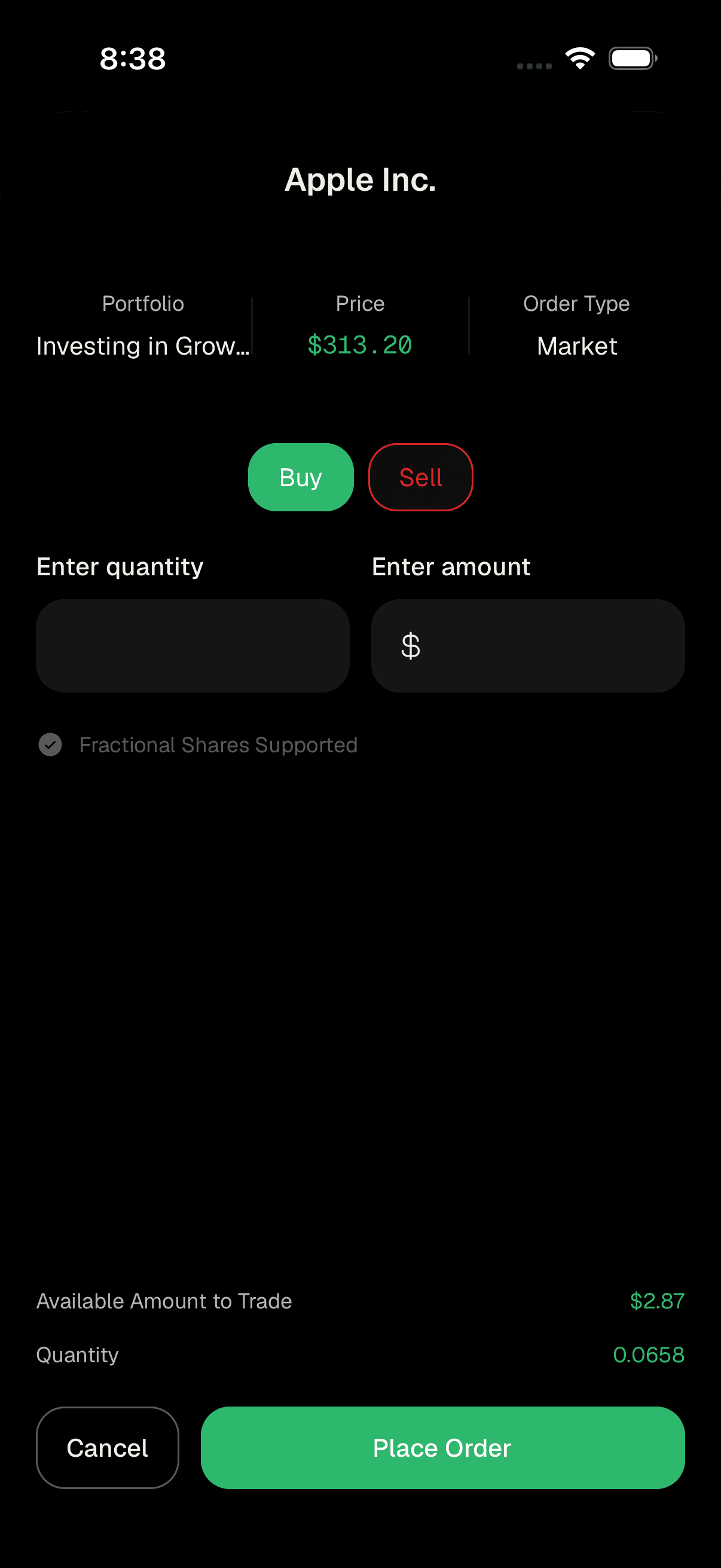
Open the trade screen for the ticker you want. At the top you'll see three columns: the Portfolio the trade belongs to, the current Price, and the Order Type.
-
Choose Buy or Sell using the toggle at the top of the order area.
-
Set your order:
- Enter quantity - the number of shares. Some stocks support fractional shares (you'll see "Fractional Shares Supported"); others need a whole number.
- Enter amount - the dollar value you want to spend. Typing an amount fills in the matching quantity automatically, and vice versa.
- When selling, you can flip the Sell All switch to sell your entire holding at once.
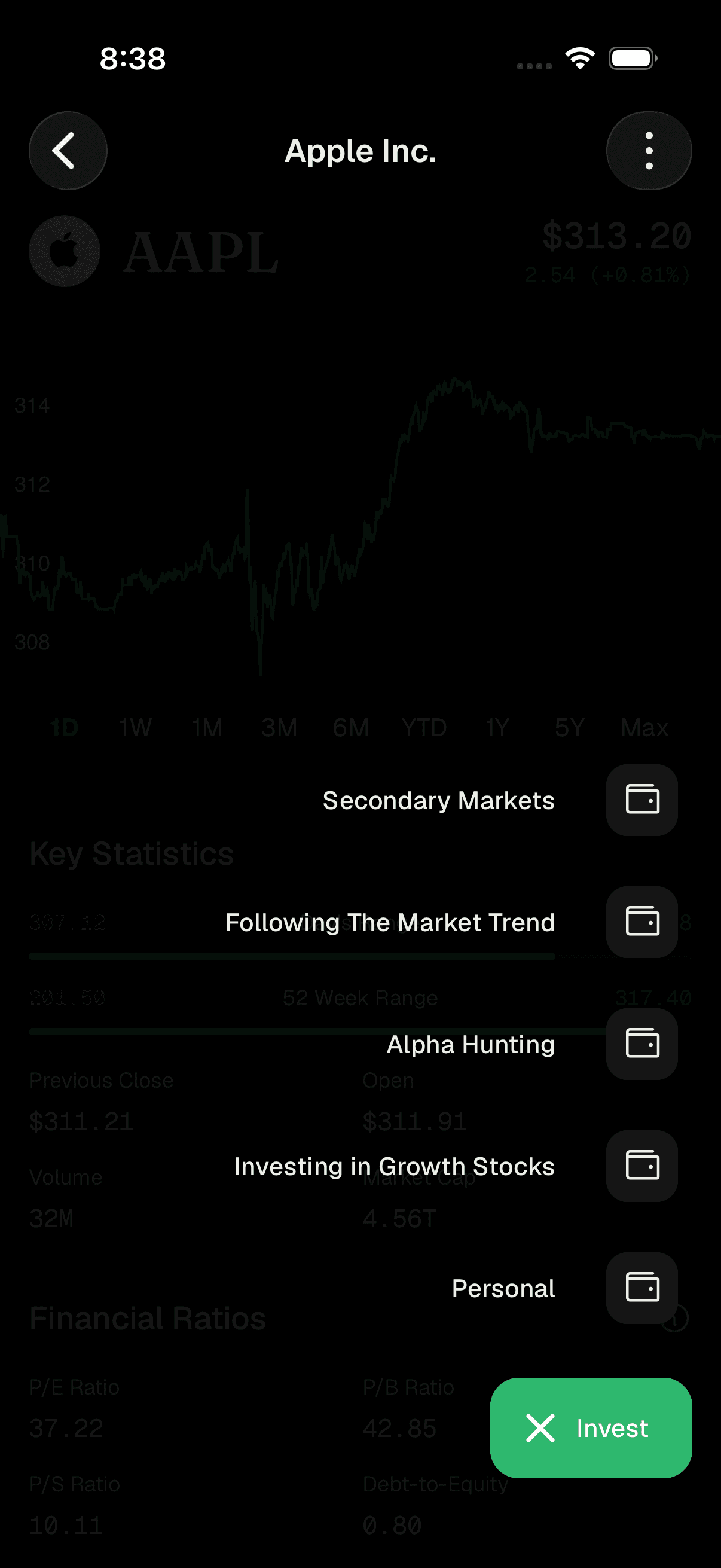
Choosing buy or sell and entering quantity or amount -
Pick your Order Type. Market places the order right away at the current price. Limit lets you set the exact price you're willing to pay or accept - tap Set Limit Price and enter your Limit Price. Limit orders don't support fractional shares. In custom portfolios, orders are always Market orders.
-
Review the summary at the bottom. For a buy you'll see your Available Amount to Trade and your current Quantity; for a sell you'll see the Quantity you hold.
-
Tap Place Order to submit, or Cancel to back out. An order tracking view appears so you can follow your order's progress.
Placing the order and tracking its status
Tips
Use Split Equally as a quick starting point, then turn it off to fine-tune individual holdings.
Switching between By Percentage and By Amount doesn't lose your work
- the app converts your existing numbers for you.
On the review screen, tapping Edit Weights is always available if you spot something before confirming, so there's no harm in double-checking.
For a single quick buy or sell, an individual trade is simpler than a full rebalance.
If you type a dollar amount when buying, the quantity fills in for you, which is handy for fractional-share stocks.
Troubleshooting & FAQ
Your total is over the limit. In By Percentage mode the total must be 100% or less; in By Amount mode it must be at or under your portfolio's total value. Check the Total line at the bottom (it turns red when you're over) and reduce a holding.
Each holding's target must be a positive number, and no single holding can exceed 100% (or your total portfolio value in amount mode). Fix the flagged ticker and try again.
Individual trades inside a custom portfolio are always placed as Market orders. The Limit option is available in your primary (Personal) portfolio.
Prices move constantly, so a market order fills at whatever the price is at that moment. Your final mix may land very slightly off your exact targets, which is normal.
A rebalance is already in progress for that portfolio. Wait for it to complete, then you can start a new one.
This means a rebalance is running on that portfolio. Placing an individual order now may change your final mix once the rebalance finishes, so it's often best to wait.
That stock doesn't support fractional shares, so enter a whole number. Stocks that do support fractions show "Fractional Shares Supported." Limit orders always require whole numbers.
For a buy, your amount can't exceed your Available Amount to Trade. Lower the amount (or quantity) so it fits within your available balance.