



Investing in a Strategizer Portfolio
Discover an expert's ready-made portfolio, put money into it, and stay in sync with their trades automatically.
Overview
PiTrade lets you invest alongside investors called Strategizers. Instead of picking individual stocks yourself, you choose a portfolio a Strategizer has built and put money into it. From then on, your position mirrors their trades at the same time and price, so you don't have to watch the market all day. This article explains what a Strategizer is, how to invest, how to read the risk information the app shows you, and how to manage a portfolio once you're invested.
What is a Strategizer?
A Strategizer is a verified creator on PiTrade who builds and publishes model portfolios that other people can invest in. You'll recognize them by the verification seal next to their name.
When you invest in a Strategizer's portfolio, you're not just copying a snapshot once. Your money is used to hold the same mix of stocks and ETFs the Strategizer holds, and your position stays in sync with the Strategizer's portfolio in real time. When they buy or sell, the app mirrors those trades in your account at the same time and price (subject to your broker's trading permissions and any account restrictions).
A few things worth knowing:
- Every portfolio shows its live-since date (how long it has been running), its disclosed risk, and verified returns - so you can judge it on real history, not guesswork.
- You keep full control. You can add funds or exit any portfolio, anytime.
Before you begin
- You'll need a fully set up investing account. If your account isn't ready, the app will show a button like Set Up Investment Account, Complete Pending Steps, or Complete Setup - tap it and follow the steps first.
- You'll need money in your Wallet. If your account is set up but has no funds, the invest button changes to Deposit Funds or Add Funds and takes you to your Wallet.
- Some portfolios use complex leveraged products and require advanced trading permissions before you can invest. If so, the app will prompt you to enable them.
Steps
-
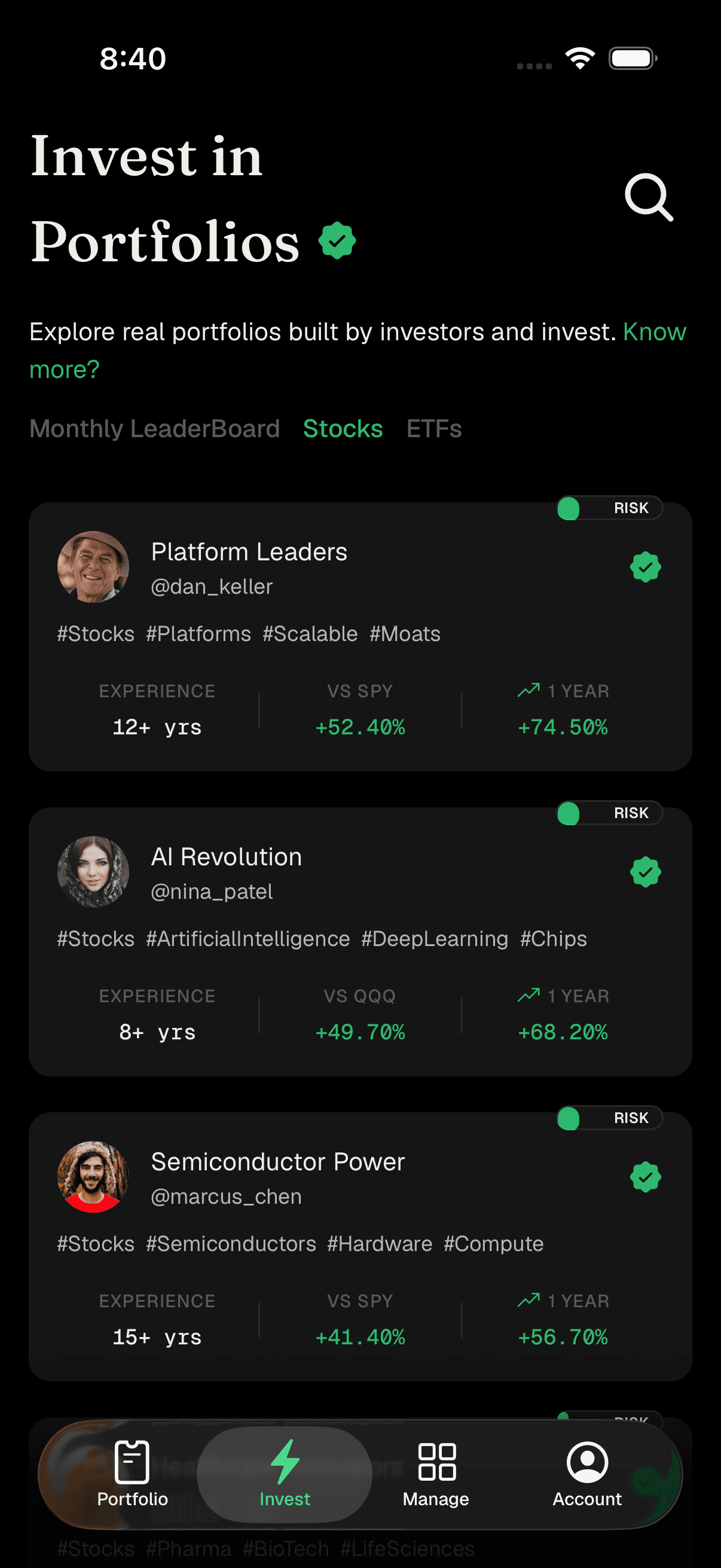
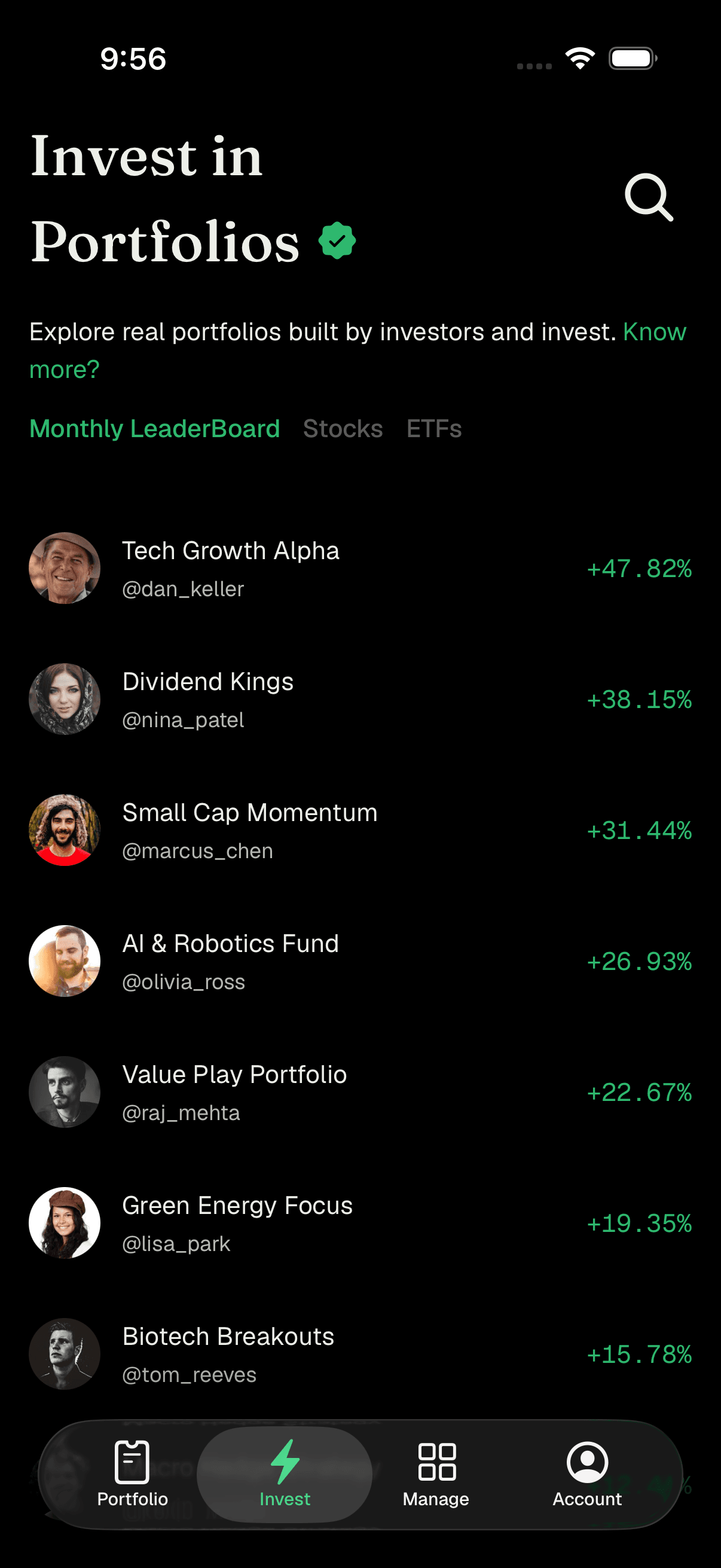
Find a portfolio to invest in. Open the Invest in Portfolios tab. Browse the Stocks & ETFs list of recommended portfolios or check the Monthly LeaderBoard. You can also tap the magnifying glass to search, or open a Strategizer's profile to see all their Public Portfolios. Tap Learn more? near the top any time for a quick explanation.
Browse portfolios in the leaderboard -
Review the portfolio card. Each portfolio card shows the Strategizer's name and handle, a risk indicator, hashtags describing the strategy, their years of experience, the 1-year return, and how the portfolio has performed vs SPY (a common market benchmark). Portfolios refresh about once an hour.
-
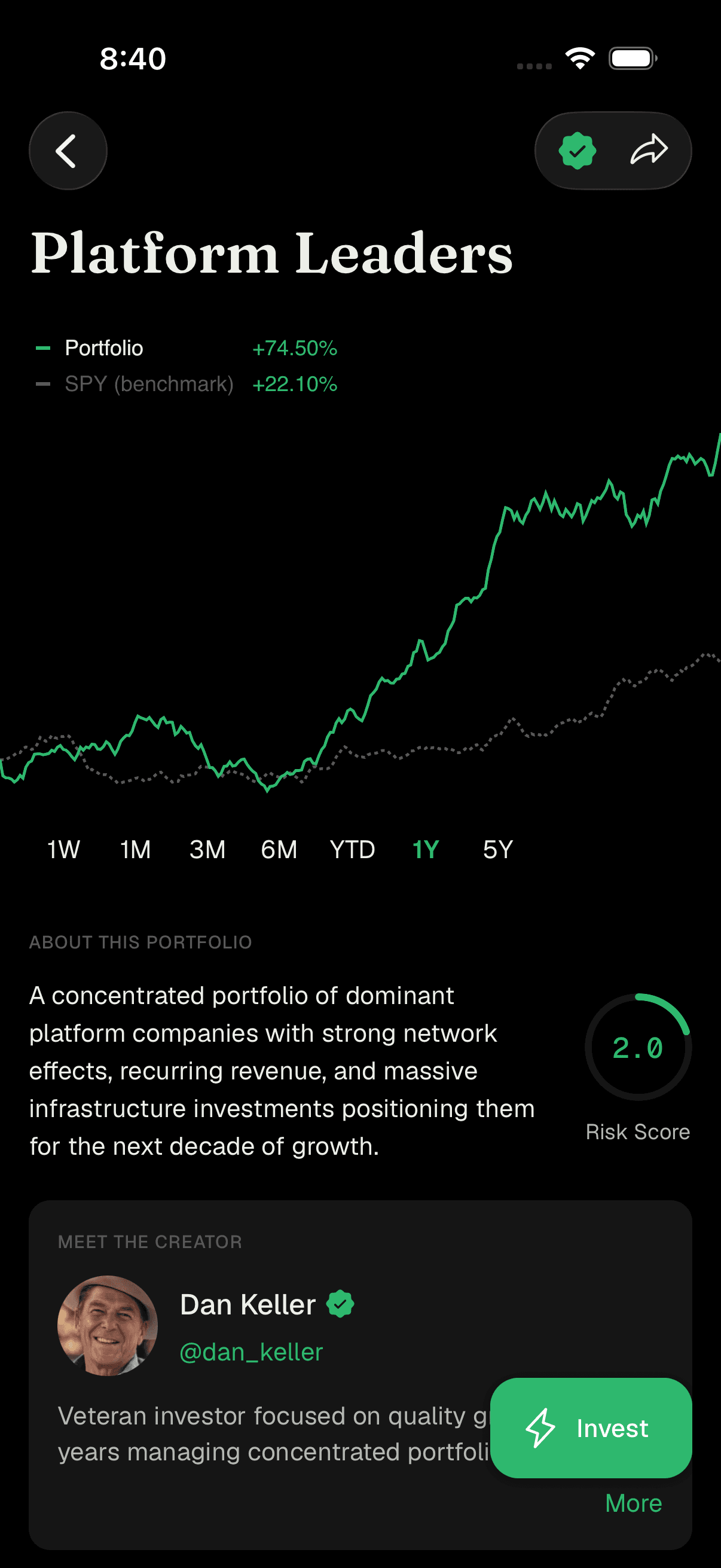
Open the portfolio and study the details. Tap a card to open the full portfolio page. Here you can review:
- A performance chart comparing the portfolio against a benchmark over timeframes like 1 week, 1 month, YTD, and (for older portfolios) 1 year or more.
- About this Portfolio - a plain-language description and the Risk Score.
- Meet the Strategizer - who built it, with a link to their full profile.
- Community - the number of Active Investors.
- Monthly performance, and Distribution & Top 5 Holdings - a pie chart of sectors plus the largest positions.
Portfolio detail page with chart, risk score, and holdings -
Tap the invest button. At the bottom of the portfolio page, tap Invest. If your account still needs setup or funds, this button will instead say Set Up Account, Complete Setup, or Deposit Funds - handle that first, then come back.
-
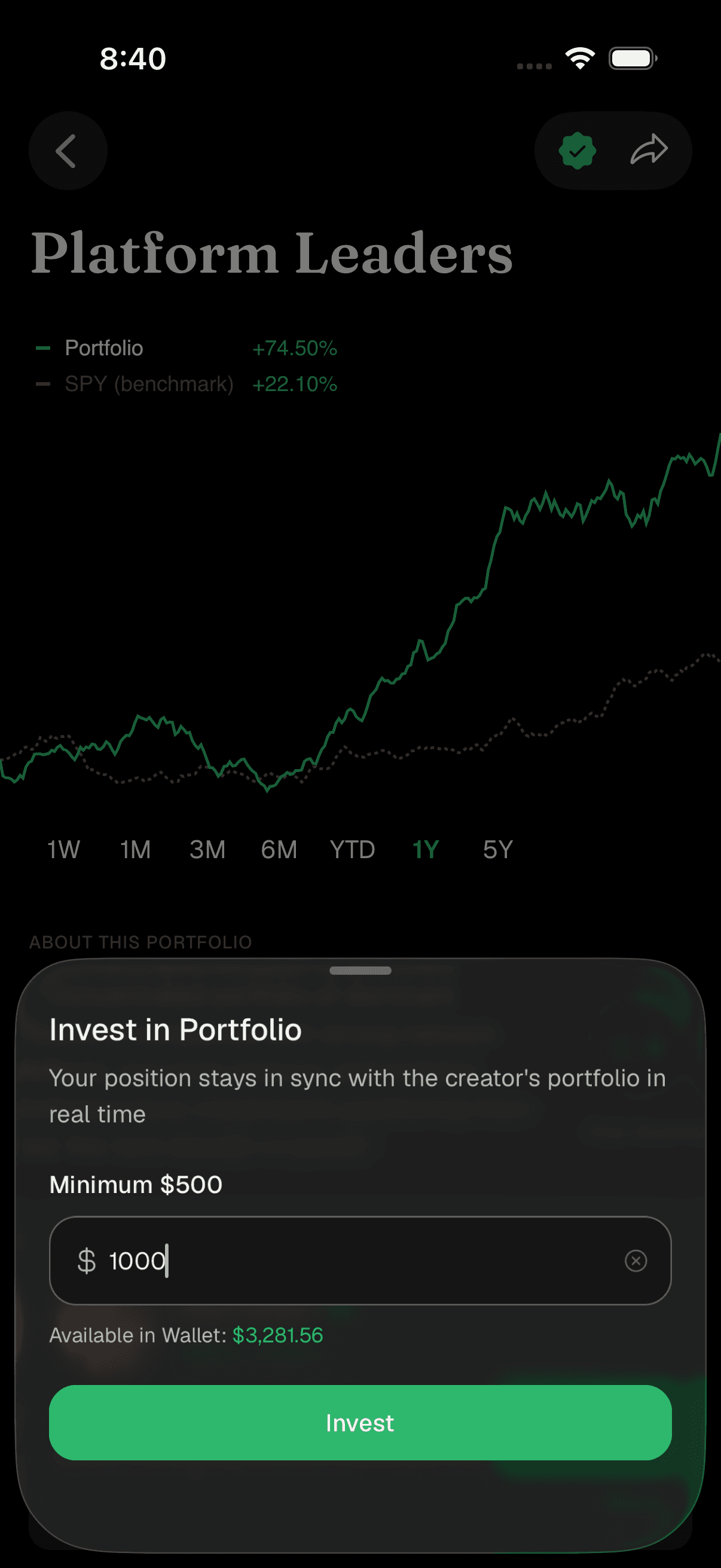
Enter an amount. In the Invest in Portfolio sheet, type how much you want to invest. Note the Minimum amount shown in the field, and check the Available in Wallet balance below it. Your amount must be at least the minimum.
Enter your investment amount -
Confirm your investment. Tap Invest to submit. You'll see a success message, and a Pending Request card appears on the portfolio showing the status of your request.
-
Wait for it to complete. Your request is processed automatically. Depending on timing, the status may read Copy in Progress, Waiting for Market Open, or Permissions Pending. You'll be notified once it's complete, and a Your Investment card will then show your amount invested, current value, and change.
Understanding risk
PiTrade surfaces several risk signals so you can invest thoughtfully. Here's what each one means in plain language.
- Risk Score (0–10). Most portfolios show a Risk Score, displayed as a colored ring. Lower numbers mean the portfolio has historically been steadier; higher numbers mean it has swung more. The color is a quick guide - Low (green) is a score of 4 or below, Medium (amber) is between 5 and 7, and High (red) is above 7.
- Risk Level Warning. If a portfolio's risk is higher than the level suited to your investment objectives, the app shows a Risk Level Warning before you invest: "This portfolio's risk level is higher than your current risk tolerance." You can tap I Understand to acknowledge it. Treat this as a genuine caution to consider before continuing.
- Risk Level Not Available. Some newer portfolios don't have a risk level yet. The app shows Risk Level Not Available and lets you invest once a risk level is available and meets your objectives. Cards for these portfolios are marked Risk Not Available, and some may be labeled Not Recommended.
- Minimum investment. Each portfolio has a minimum amount (shown in the amount field). Minimums help ensure your money can be spread across the portfolio's holdings.
- Advanced trading permissions. Portfolios that use complex leveraged products require you to Enable Advanced Trading first. The app explains this is a quick step to make sure you understand the risks of advanced trading strategies before you can invest.
A general note, not an app feature: only invest money you can afford to leave invested, spread your money across more than one portfolio or holding rather than concentrating it, and revisit your investments periodically. All investing involves risk, and past performance shown in the app does not guarantee future results.
Managing an investment
Once your investment is active, the invest button on the portfolio page becomes a Manage button. Tap it to reveal two actions:
- Invest - opens the Add Funds sheet so you can put more money into the same portfolio and increase your position. Enter an amount and tap Add Funds.
- Withdraw - begins releasing your investment from the portfolio. You'll be asked to confirm ("Are you sure you want to release your investment from this portfolio?"); tap OK to proceed. The request is processed automatically, and you'll be notified when it's done.
You can also review any invested portfolio at any time. On the portfolio page, the Your Investment card shows your Amount Invested, Current Value, and Change. All the portfolios you've invested in are listed together under Invested Portfolios in your Investments tab, where you can tap any one to open it.
Tips
Use the Share icon at the top of a portfolio to send it to a friend.
The performance chart's available timeframes grow as a portfolio ages, so newer portfolios show fewer time ranges.
A portfolio card may show a Going live label if it hasn't started trading yet - check the go-live time before expecting activity.
Compare a portfolio's return against the vs SPY figure to see how it stacks up against the broader market.
Troubleshooting & FAQ
Your position mirrors the Strategizer's portfolio in real time. When they trade, the app places matching trades in your account at the same time and price, subject to your broker's trading permissions and account restrictions.
No. Trades run when the market is open. Your request is scheduled and will execute automatically once the market opens. You'll be notified when it completes.
That portfolio uses complex leveraged products. Tap Configure Permissions (or Complete Pending Tasks if you have outstanding account requirements) and follow the steps. Once enabled, your investment will process.
The portfolio's risk is higher than the level suited to your stated objectives. It's a heads-up, not a block - review it carefully, and tap I Understand if you still want to continue.
Yes. Open the portfolio, tap Manage, then Invest, and add funds through the Add Funds sheet.
Open the portfolio, tap Manage, then Withdraw, and confirm. Your investment will be released and you'll be notified when it's complete.
It may be below the portfolio's minimum, or your Wallet balance may be too low. Check the Minimum shown in the amount field and the Available in Wallet balance, then try again.