



Security & Authentication
How to protect your PiTrade account with Face or Touch ID, two-factor authentication, security questions, and how to change your password.
Overview
PiTrade gives you several ways to keep your account safe. On the Security screen you can turn on Face or Touch ID to unlock the app and enable Two-Factor Authentication (2FA) for an extra layer of protection at login. Separately, your trading account uses Security Questions during setup, and you can change your password any time using the password reset flow. This article walks through each of these.
Before you begin
- You'll need to be logged in to reach the Security screen.
- To use Face or Touch ID, your device must already have it set up in your device settings.
- To use Two-Factor Authentication, install an authenticator app (such as Google Authenticator, Microsoft Authenticator, or similar) on your phone.
Steps
Opening the Security screen
-
Tap the Account tab at the bottom of the app.
-
Tap Security ("Manage authentication"). This opens the Security screen.
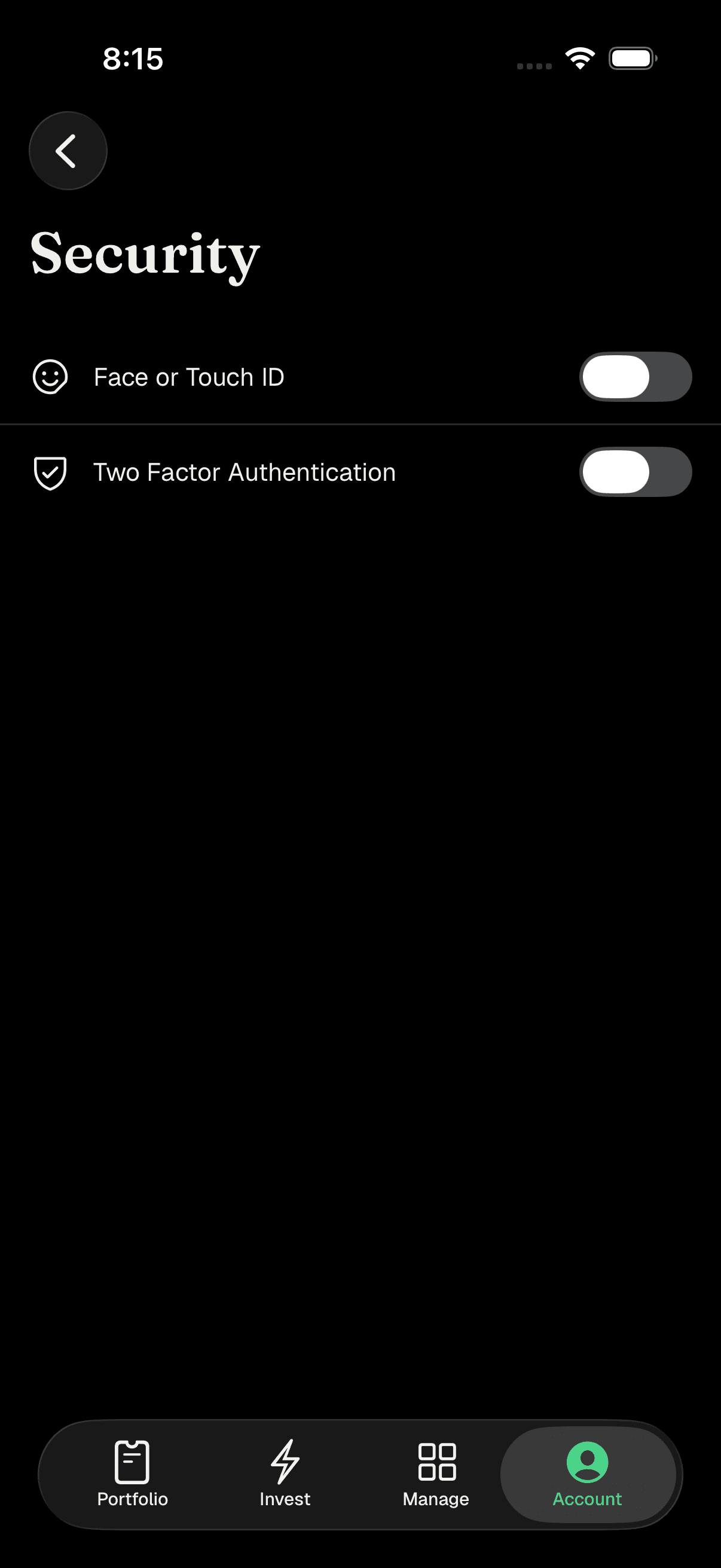
Security screen showing Face or Touch ID and Two-Factor Authentication
Turning on Face or Touch ID
- On the Security screen, find Face or Touch ID and tap its switch to turn it on.
- Your device will prompt you to confirm with your face or fingerprint ("Enable Face ID / Touch ID to secure your account"). Confirm to finish. The switch stays on once it's enabled. If your device doesn't have Face ID or Touch ID set up yet, PiTrade shows a message and offers a Go to Settings button so you can set it up first, then come back. To turn it off later, tap the switch again. Note: this option appears on the phone app, not the website.
Turning on Two-Factor Authentication (2FA)
-
On the Security screen, tap Two Factor Authentication (or its switch). A panel slides up with a QR code.
-
Open your authenticator app and scan the QR code. It says "Scan the QR code in your Authenticator app." Can't scan? Tap Copy Key to copy the setup key, then paste it into your authenticator app and choose the Time-based option.
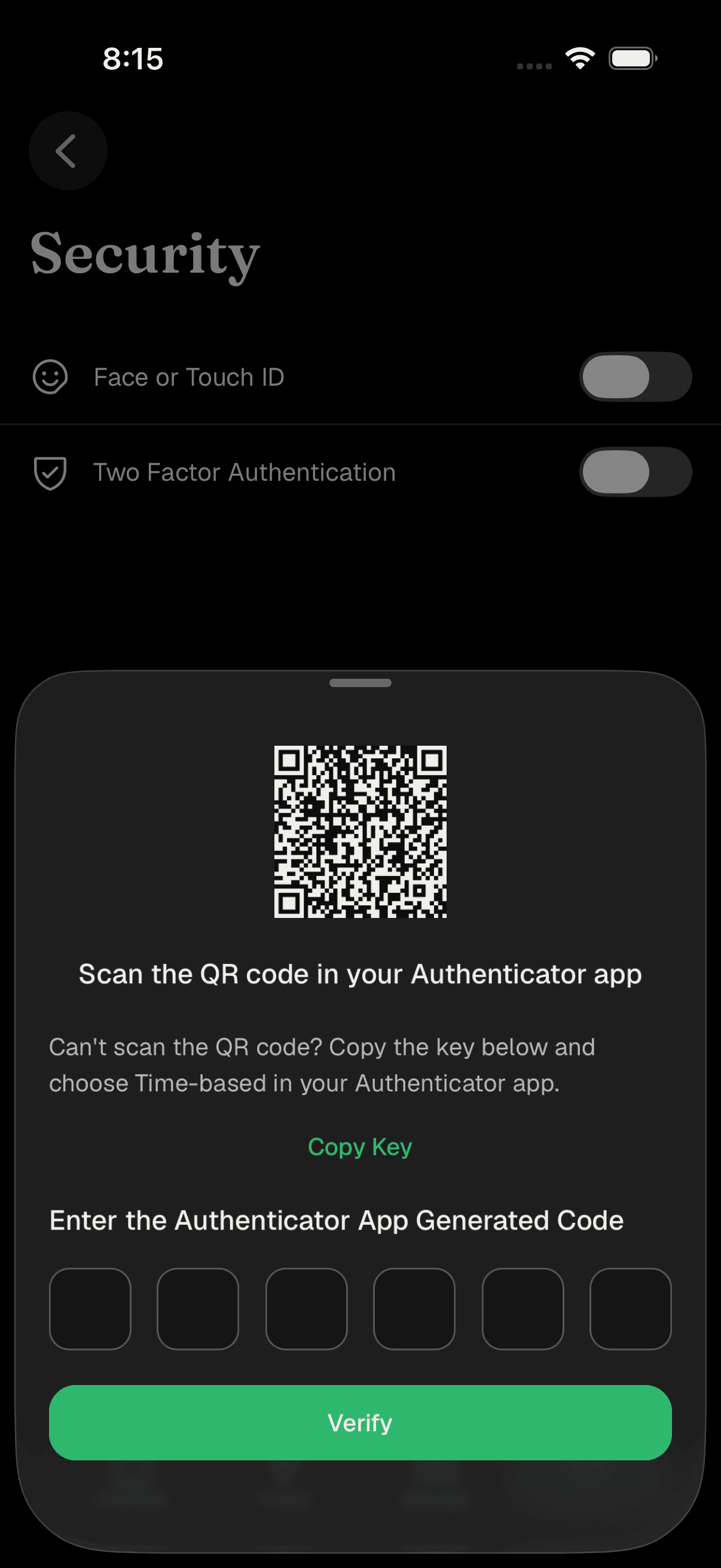
Two-factor setup panel with QR code and code entry -
Your authenticator app will now show a rotating 6-digit code. Type that code into the Enter the Authenticator App Generated Code boxes, then tap Verify. Once verified, 2FA is on, and PiTrade will ask for a code from your authenticator app each time you log in.
Turning off Two-Factor Authentication
- On the Security screen, tap Two Factor Authentication (or its switch) while it's on.
- A Confirm your password panel appears. Enter your password and tap Verify. When your password is confirmed, 2FA is turned off.
Setting your Security Questions
-
Security questions are part of your trading account. You see a notification icon to setup your security questions once your account gets approved.
-
On the Security Questions screen you'll see two question slots.
-
For Question 1, tap Select a security question and choose one from the list, then type your answer in the Enter your answer box.
-
Repeat for Question 2, choosing a different question and a different answer.
-
Tap Submit. You'll see "Security questions updated successfully" when it's saved. Answers have rules: each must meet a minimum length, can't repeat the same character too many times in a row, and some questions don't allow numbers. Your two answers must also be different from each other.
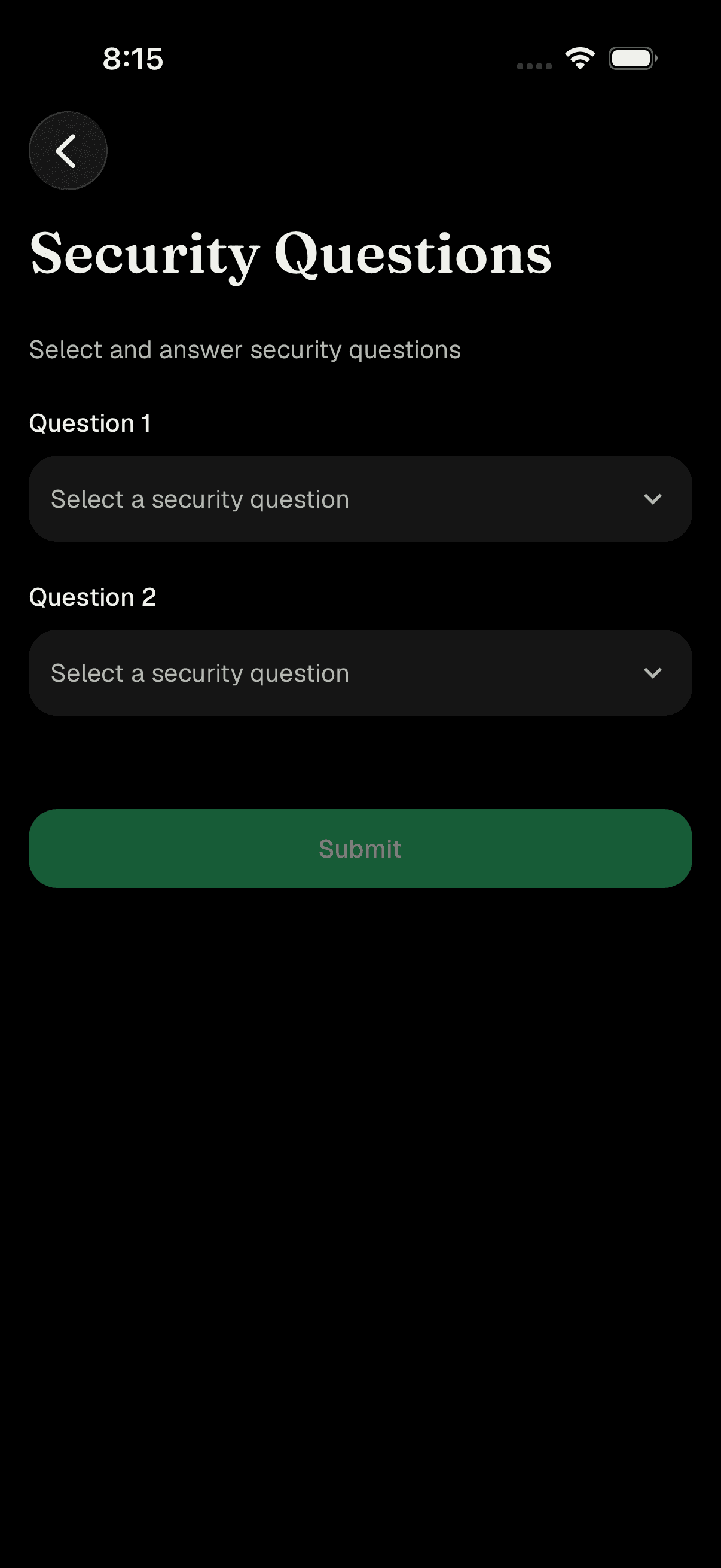
Security Questions screen with two dropdowns and answer fields
Changing your password
- PiTrade changes passwords through the password reset flow. Log out (or, from the Login screen, tap Forgot Password?).
- Enter your Email Address and the New Password you want, then tap Reset Password.
- Enter the 6-digit code PiTrade emails you to confirm. Once it succeeds, log in with your new password. Full steps are in the Logging In article.
Tips
Troubleshooting & FAQ
Your device probably doesn't have Face ID or Touch ID set up yet. Tap Go to Settings in the prompt, set it up in your device settings, then return to the Security screen and try again.
Tap Copy Key on the setup panel, paste the key into your authenticator app, and pick the Time-based option. The app will then generate the 6-digit code you need.
Authenticator codes rotate every 30 seconds. Make sure you're entering the current code, and that your phone's clock is set automatically. Enter the freshest code and tap Verify again.
Tap Two Factor Authentication on the Security screen, enter your password in the Confirm your password panel, and tap Verify.
Password changes go through the reset flow. Use Forgot Password? on the Login screen, set a new password, and confirm it with the emailed code.
Security questions are part of your Interactive Brokers trading account and add another way to verify it's really you. You can set or update them on the Security Questions screen.