



Creating a Portfolio
Build your own portfolio in the Manage tab, add the stocks and funds you believe in, and set how much of your money goes into each one.
Overview
Your portfolios live in the Manage tab, where the header reads "Manage your Portfolios." From here you can create a brand-new portfolio, give it a name and a strategy, load it with funds, and choose whether other people can discover and invest alongside you. This article walks you through what the Manage tab shows, how to create a portfolio, and how to edit one later.
Before you begin
- Make sure you have funds available in your Wallet. When you create a portfolio you choose an amount to load into it, and the app shows your available balance as you type.
- Have a rough idea of your strategy: a name, a short description, and the type of investments you want to hold (Stocks, ETFs, or both).
Steps
Understand the Manage tab
-
Open the Manage tab. At the top you'll see the heading "Manage your Portfolios" along with the prompts "What does success mean to you? How will you achieve it?" and "Create a portfolio. Begin investing. Manage your risk."
-
Use the two tabs just below the header to switch views:
- My Portfolios lists every portfolio you own. Each card shows the portfolio name, a PUBLIC or PRIVATE badge, its Risk score, YTD and 1Y returns, your Available Funds, Total Value, and the number of Investors.
- About shows your public strategizer details.
-
Tap the menu icon (the three dots) in the top-right corner for extra options: Share (share a link to your portfolios) and Learn More (a quick explainer about managing portfolios).
Create a new portfolio
-
On the Manage tab, tap the Create Portfolio button in the bottom-right corner. This opens the "Create Portfolio" screen.
-
Fill in the Portfolio Name (required, up to 25 characters). This is what you and others will see at the top of the portfolio card.
-
Fill in the Portfolio Description (required, up to 300 characters). Use this to explain your strategy or goal in a sentence or two.
-
Choose your Portfolio Type (required). Tick Stocks, ETFs, or both. An ETF (exchange-traded fund) is a single investment that bundles many stocks together. You must select at least one.
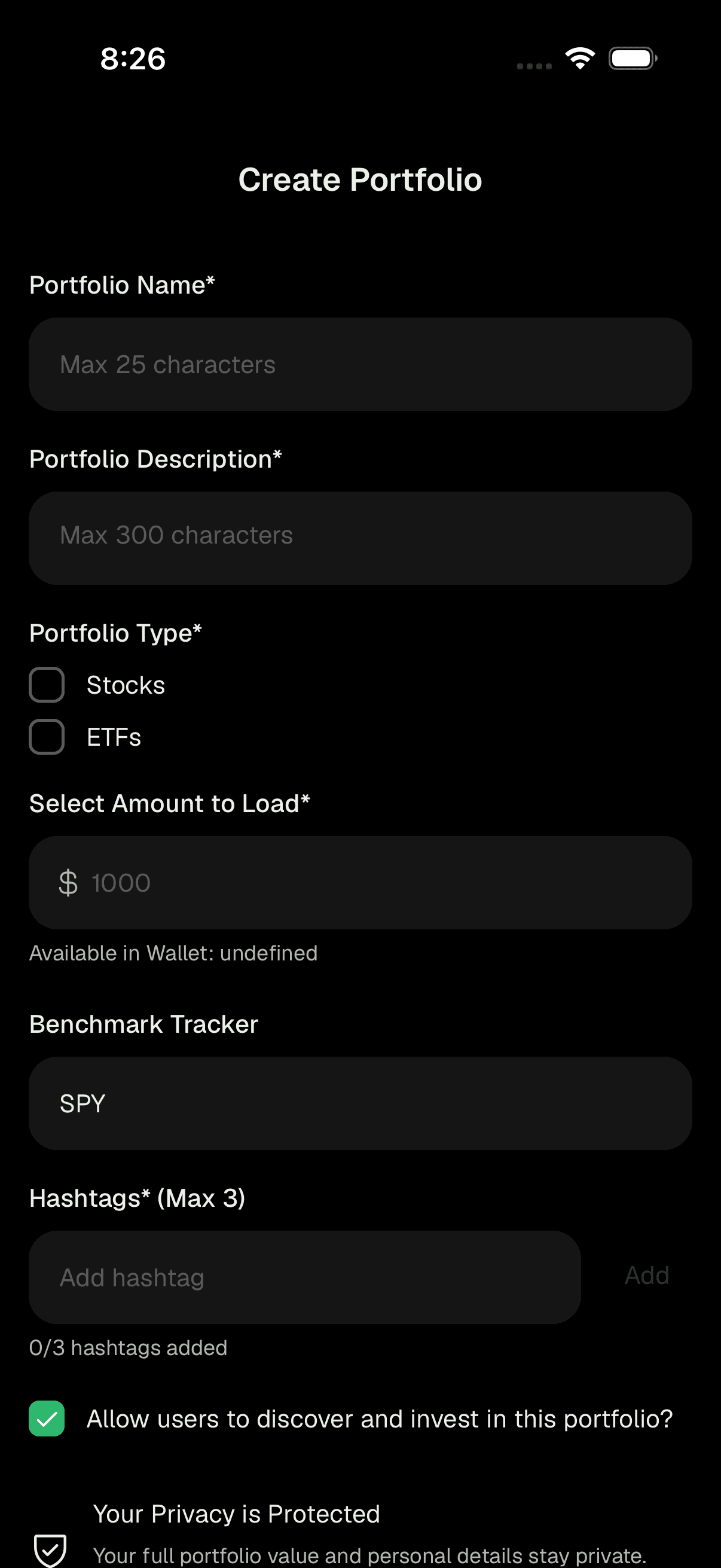
Filling in portfolio name, description, and type -
Enter an amount in Select Amount to Load (required). This is how much of your money moves from your Wallet into this new portfolio so you can begin trading. The helper text shows "Available in Wallet" so you know your limit.
-
Set the Benchmark Tracker if you'd like. This is the yardstick your portfolio's performance is measured against. It defaults to SPY (a fund that tracks the broad US market), and you can change it to another ticker.
-
Add Hashtags (required, up to 3). Type a tag and tap Add. Each tag appears as a chip below the field - tap a chip to remove it. You need at least one hashtag to continue.
-
Decide on visibility. The checkbox "Allow users to discover and invest in this portfolio?" makes your portfolio public when ticked. When it's public, others can find it and invest alongside you, but they only ever see your top 5 holdings by percentage. Your full portfolio value and personal details always stay private.
-
Tap Create Portfolio at the bottom. When it succeeds you'll see a "Success!" message confirming you can begin trading with your available funds. Tap OK to return.
Edit or update a portfolio
-
Go back to the Manage tab and open the My Portfolios view.
-
On the portfolio you want to change, tap the pencil icon in the top-right corner of its card. This opens the "Update Portfolio" screen.
-
Update any details you like - Portfolio Name (here you can use up to 50 characters), Portfolio Description, Portfolio Type, Benchmark Tracker, and Hashtags. The visibility checkbox works the same way as when creating a portfolio.
-
To add or remove money, use Transaction Type and pick Deposit or Withdraw, then enter an Amount. The helper text shows how much is available to deposit or withdraw. If you don't want to move money, leave the Transaction Type unselected and the Amount field disabled.
-
Tap Update Portfolio to save. You'll see "Portfolio updated successfully." Tap OK to return.
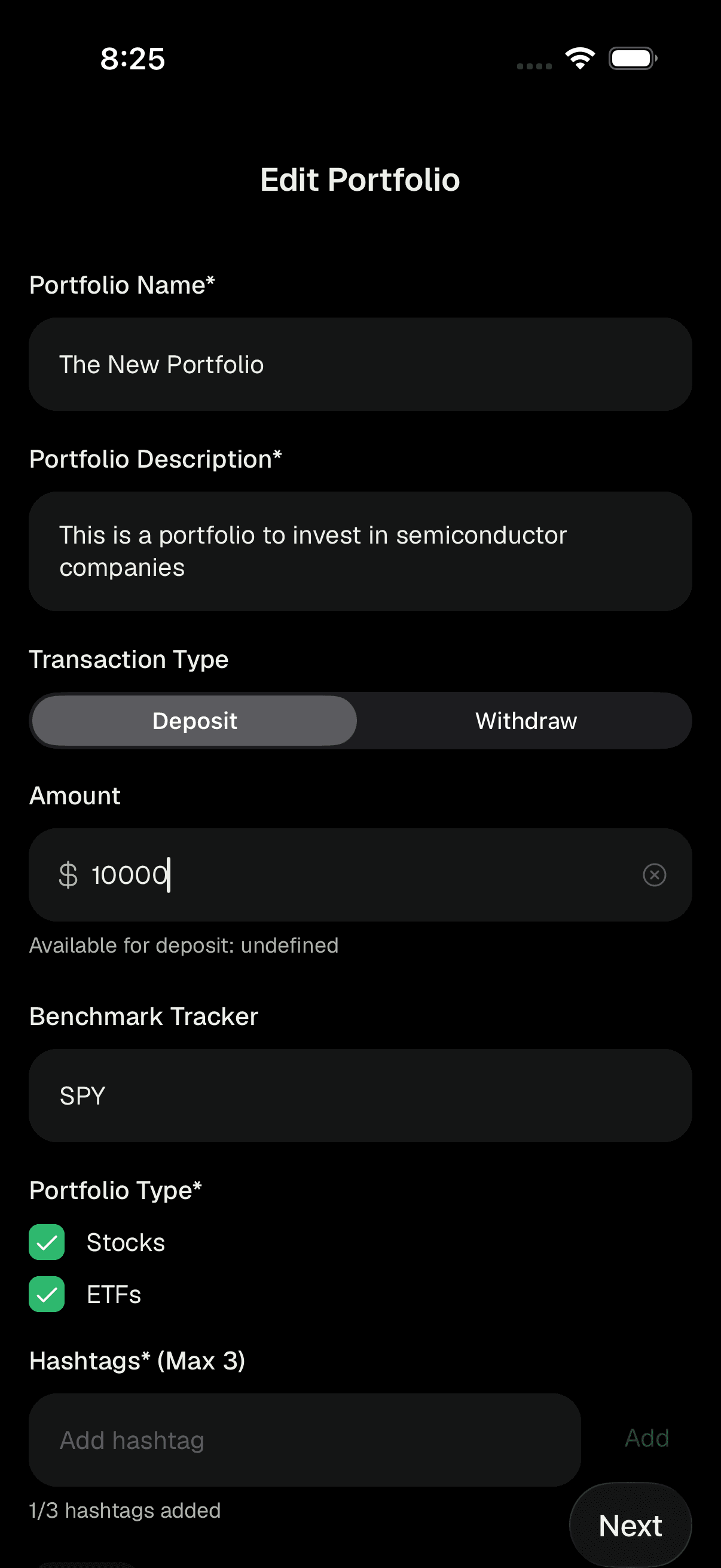
Updating a portfolio and depositing or withdrawing funds
Tips
Keep your description clear and specific. If you make the portfolio public, this is what helps others understand your strategy at a glance.
Only your top 5 holdings by percentage are ever visible to others, so a public portfolio still keeps most of your details private.
You can always start small: load a modest amount now and use Deposit later from the Update screen as your confidence grows.
Hashtags help others discover a public portfolio, so choose ones that describe your theme (for example a sector or style).
Troubleshooting & FAQ
Every required field must be filled in: a name, a description, at least one Portfolio Type, an amount greater than zero, a benchmark, and at least one hashtag. The button stays disabled until all of these are complete.
You can add a maximum of 3. The helper text shows how many you've added (for example "2/3 hashtags added"). Remove one by tapping its chip if you want to swap it.
You can only load what's available in your Wallet. The "Available in Wallet" helper text under the amount field shows your ceiling.
PUBLIC means other users can discover the portfolio and invest alongside you (seeing only your top 5 holdings). PRIVATE means it's just for you. You control this with the "Allow users to discover and invest in this portfolio?" checkbox.
Your personal Wallet portfolio is your primary portfolio and can't be edited like a custom portfolio, so it doesn't show the pencil icon or the extra stats. The pencil appears on the portfolios you create.
Yes. Open the portfolio's Update screen (the pencil icon), set Transaction Type to Withdraw, and enter the amount. The helper text shows how much is available to withdraw.