



Managing Your Interactive Brokers Account
Everything you can view and update on your Interactive Brokers Account screen - from dividend reinvestment and stock lending to your financial profile and signed agreements.
Overview
Your trading account is held with Interactive Brokers, and the Interactive Brokers Account screen in PiTrade is where you manage it. From one place you can review your account details, turn features like dividend reinvestment and stock lending on or off, update your financial profile, add a trusted contact, transfer holdings from another brokerage, view your signed agreements, and reach customer support. This guide explains each option in plain language.
Before you begin
- Your Interactive Brokers account must be open and approved.
- Some features (like enabling a setting or contacting support) briefly connect to Interactive Brokers' secure session, so a stable internet connection helps.
Steps
Find your account screen
-
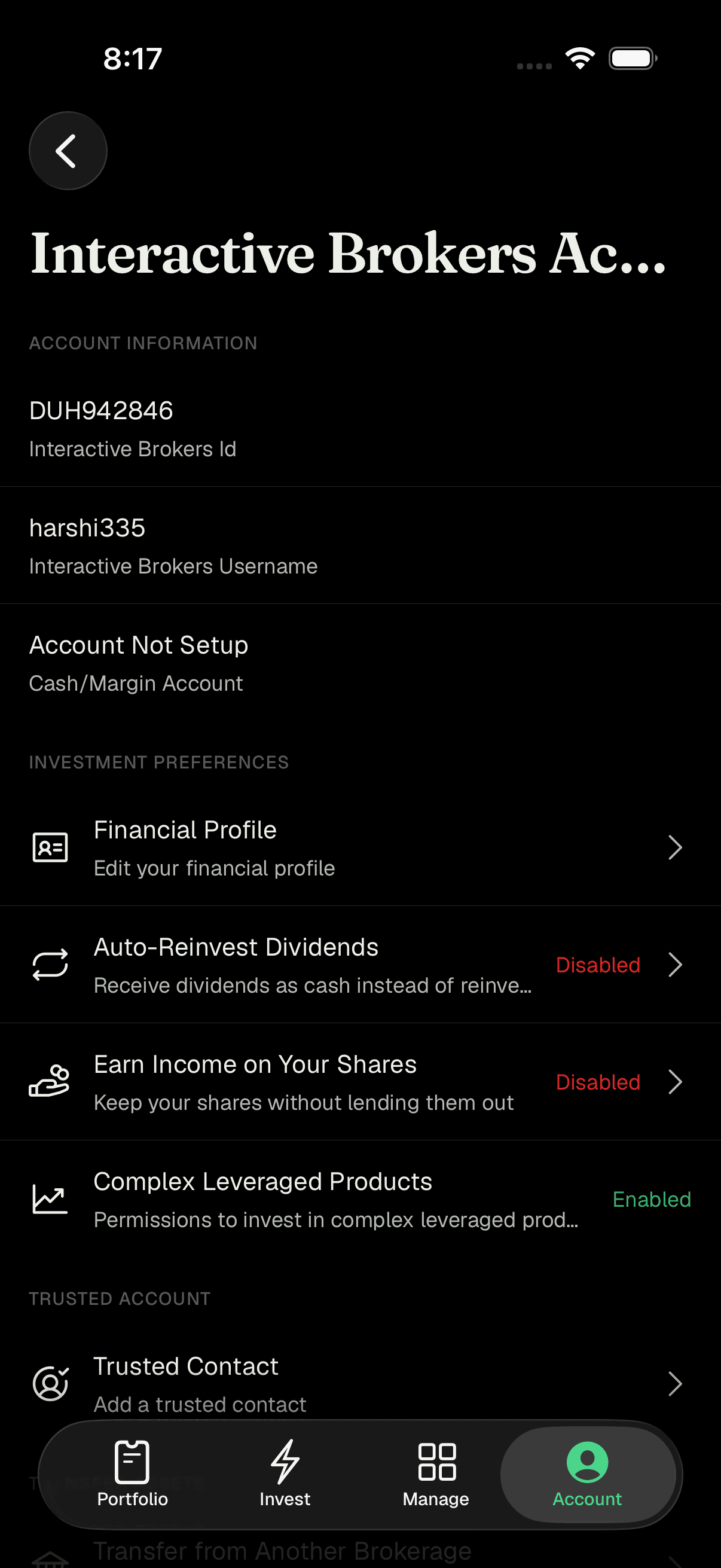
Go to the Account area and open Interactive Brokers Account. You'll see several sections you can scroll through.
Interactive Brokers Account overview with all sections
Review your account information
- Under Account Information, you can view (but not edit) your Interactive Brokers Id, Interactive Brokers Username, and Cash/Margin Account type.
Update your financial profile
-
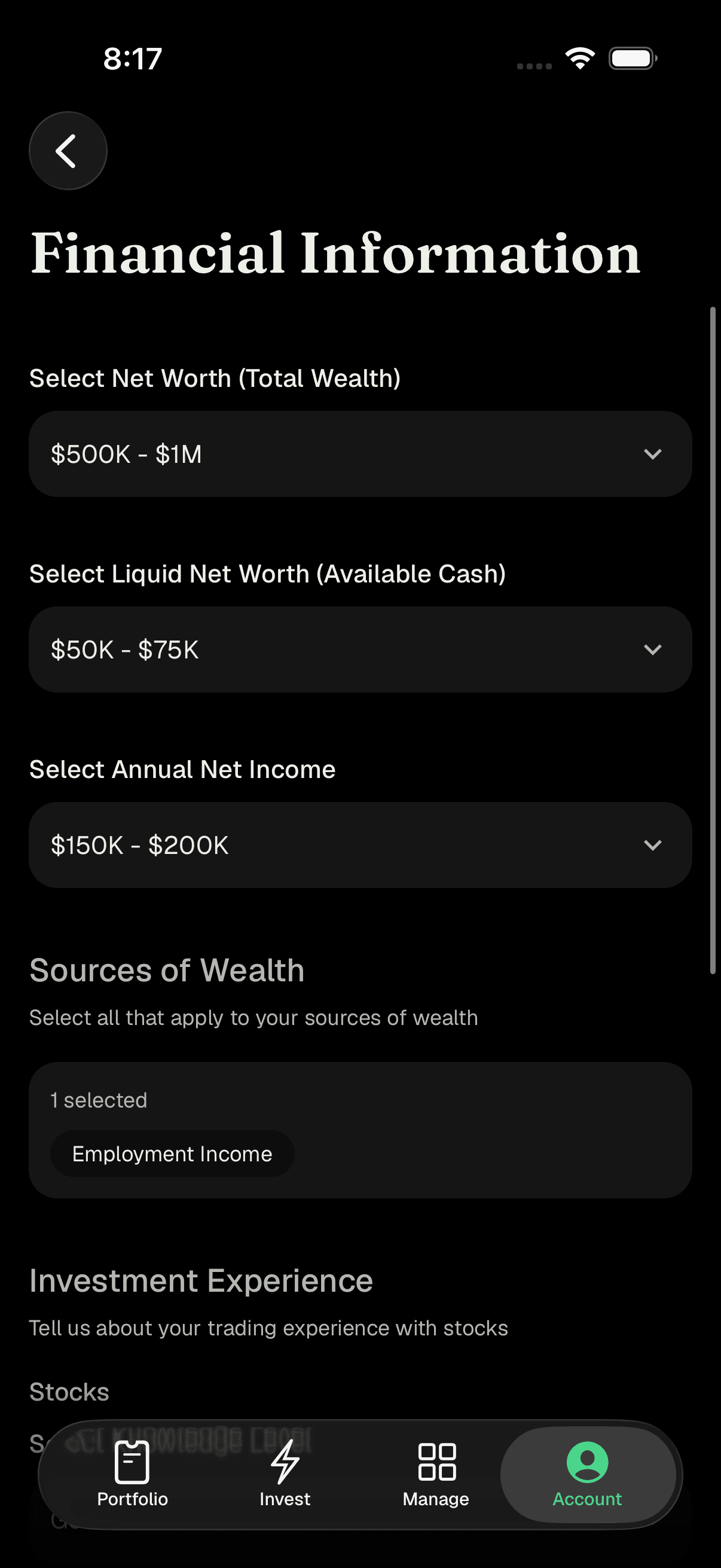
Under Investment Preferences, tap Financial Profile.
-
On the Financial Profile screen you can review and update your Financial Overview (net worth and income figures), Sources of Wealth, Investment Experience, and Investment Objectives.
-
Make your changes and tap Save.
Financial Profile edit screen
Turn dividend reinvestment (DRIP) on or off
-
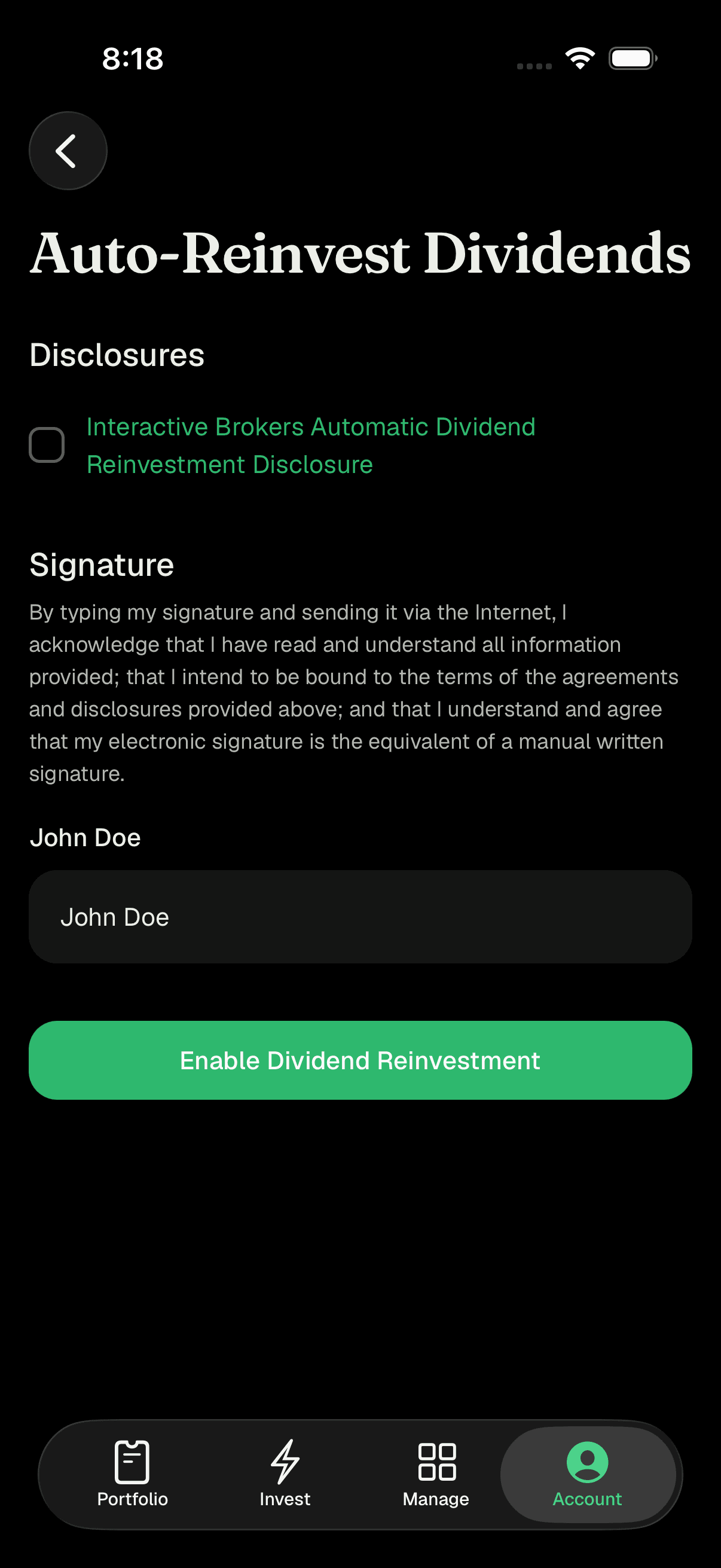
Under Investment Preferences, tap Auto-Reinvest Dividends. The current status (Enabled or Disabled) is shown next to it. DRIP stands for Dividend Reinvestment Plan - when it's on, any cash dividends your investments pay out are automatically used to buy more shares instead of sitting as cash.
-
To turn it on: read and accept the Interactive Brokers Automatic Dividend Reinvestment Disclosure, type your full name as your signature, and tap Enable Dividend Reinvestment. You'll get a confirmation that your request was submitted, and you'll be notified when it's active.
-
To turn it off: on the same screen, tap Disable Dividend Reinvestment. Your dividends will then be paid to you as cash.
Auto-Reinvest Dividends screen
Turn stock lending (SYEP) on or off
-
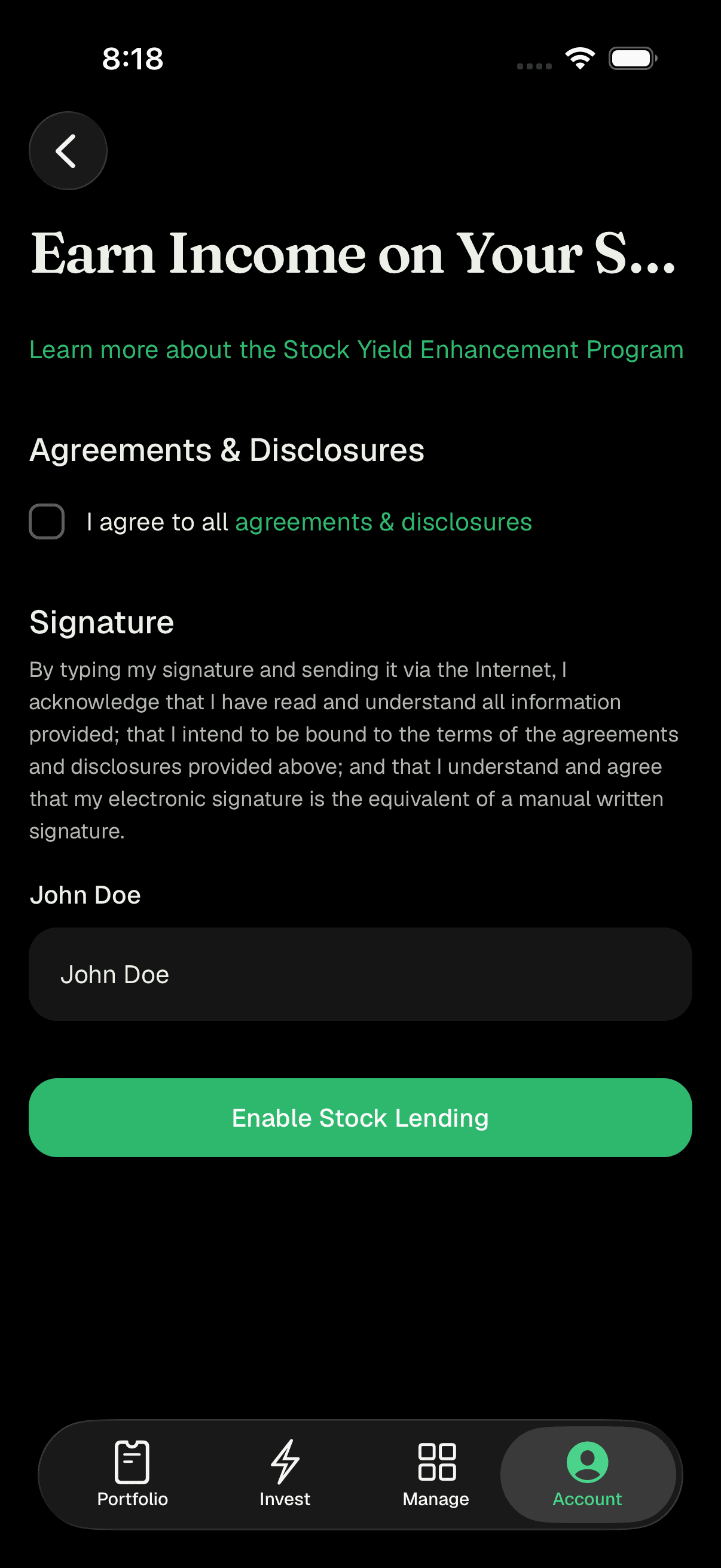
If it's available for your account, tap Earn Income on Your Shares under Investment Preferences. The current status (Enabled or Disabled) is shown next to it. SYEP stands for Stock Yield Enhancement Program - when it's on, shares you fully own can be lent out through Interactive Brokers' Fully-Paid Securities Lending Program, and you can earn additional income for lending them. You keep ownership and can still sell your shares at any time.
-
To turn it on: accept the required agreements and disclosures (including the Master Securities Lending Agreement and the risks disclosure), type your full name as your signature, and tap Enable Stock Lending.
-
To turn it off: tap Disable Stock Lending. Your shares will no longer be lent out. Note: this option only appears when your account is eligible for it.
Stock Yield Enhancement Plan screen
Add a trusted contact
- Under Trusted Account, tap Trusted Contact to add someone Interactive Brokers can reach out to about your account in certain situations. You'll be taken to a secure page to set this up.
Change your password (some accounts)
- If your account supports it, a Change Password option appears under Trusted Account. Tap it to update your account password through a secure page.
Transfer holdings from another brokerage
- Under Transfer Assets, tap Transfer from Another Brokerage to move existing stock holdings from another brokerage into your PiTrade/Interactive Brokers account. You'll be guided through a secure transfer page.
View your agreements and disclosures
- Under Agreements and Disclosures, tap Agreements and Disclosures to see all the agreements and disclosures you've signed - such as your Terms and Conditions and Investment Adviser Brochure - and review them any time.
Get help
- Under Customer Support, choose how you'd like to reach Interactive Brokers: Call the support phone number shown for your region, Email help@interactivebrokers.com (this opens a pre-filled email that includes your account ID), or Chat with support if this option is available for your account.
Log in to Interactive Brokers (if shown)
- If a Login to Interactive Brokers section appears, tap Log In to open a secure session that takes you directly into your Interactive Brokers account.
Tips
DRIP and SYEP both show their current status (Enabled or Disabled) right on the main screen, so you can tell at a glance which features are active.
Enabling DRIP or stock lending is a request processed by Interactive Brokers
- you'll be notified once it takes effect, so don't worry if the status doesn't flip instantly.
When signing to enable a feature, type your full name exactly as it appears on your profile, or the signature won't be accepted.
Emailing support from this screen automatically includes your account ID, which helps the team assist you faster.
If you're moving investments over from another broker, use Transfer from Another Brokerage rather than selling and re-buying, so you can keep your existing holdings.
Troubleshooting & FAQ
When DRIP is on, your cash dividends are automatically reinvested to buy more shares. When it's off, dividends are paid to you as cash in your account.
You keep ownership of your shares and can sell them whenever you like - lending simply makes them eligible to earn extra income. Because it involves lending, please read the agreements and risk disclosure shown before you enable it so you understand the details.
Stock lending only appears when your account is eligible for it. If you don't see it, your account doesn't currently qualify.
Your typed signature must match the full name on your profile. Re-enter your name exactly as it's shown and try again.
Enabling is submitted to Interactive Brokers for processing. You'll receive a notification once it's active - the status updates after that's complete.
Use Call for urgent issues, Email for anything you want in writing (it auto-fills your account ID), or Chat for quick questions if it's available on your account.
No - those are shown for reference only and can't be edited in the app.