



Connect to ChatGPT
Add the PiTrade MCP server as a connector in ChatGPT so it can check balances, trade, and manage portfolios on your behalf.
Overview
ChatGPT supports connecting to remote MCP servers through Apps. Once added, ChatGPT can use the same PiTrade tools described in the PiTrade MCP Server article - wallet balance, portfolios, trades, rebalancing - directly inside a chat.
Before you begin
- A ChatGPT account with Apps (including custom/developer connectors) available on your plan
- Your PiTrade login credentials, to approve the connection when prompted
- A funded PiTrade account if you want ChatGPT to actually place trades
Steps
-
In ChatGPT, go to Settings > Connectors. or,
-
Go to https://chatgpt.com/#settings/Connectors
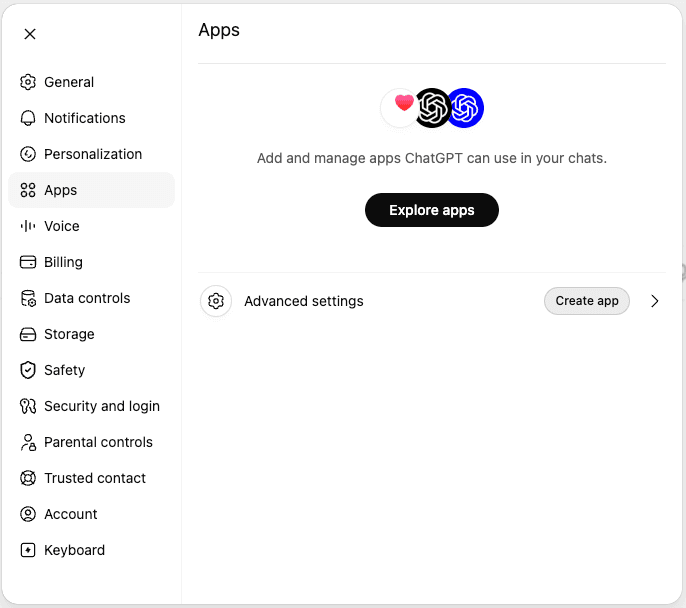
ChatGPT Settings screen with Apps -
If you don't see an option to "Create app", turn on Developer mode first in Advanced Settings - this exposes the "Create app" option.
-
Choose Create app and enter the PiTrade MCP server URL:
https://mcp.pitrade.com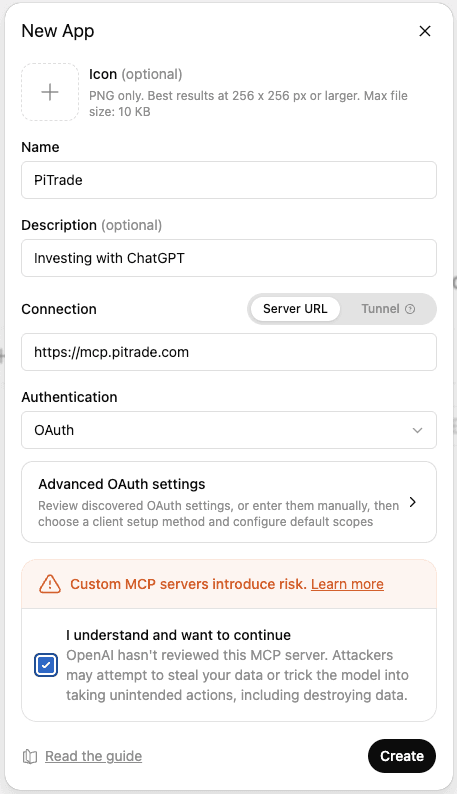
Create app dialog with the PiTrade MCP URL entered -
ChatGPT opens PiTrade's login and approval screen. Log in and review the requested permissions.
-
Approve the connection. You'll land back in ChatGPT with the connector marked Connected.
-
In a new chat, enable the PiTrade app from the tools/app picker and ask something like "What's my PiTrade wallet balance?"
Questions to get started
Once connected, try asking ChatGPT any of these:
Tips
ChatGPT connectors sometimes need to be turned on per-conversation - look for a tools or connector icon in the chat composer if PiTrade doesn't respond to a request.
Approve only the permissions you're comfortable with; you can revisit them from the Connectors settings later.
Treat any trade ChatGPT proposes the same way you would a trade from a human assistant - read the confirmation before approving it.
Troubleshooting & FAQ
This option is usually gated behind Developer mode or a specific plan tier. Turn on Developer mode in Connector settings, or check that your plan supports custom MCP connectors.
Make sure the PiTrade connector is toggled on for that specific conversation - some ChatGPT clients require enabling connectors per chat.
Yes - remove it from ChatGPT's Connectors settings, or revoke it from PiTrade's Account > Security screen.
Yes - ChatGPT redirects to PiTrade's standard login and approval screen, the same one used by the app and by Claude.