



Connect to Claude
Add the PiTrade MCP server as a custom connector in Claude so it can check balances, trade, and manage portfolios on your behalf.
Overview
Claude supports connecting to remote MCP servers as custom connectors. Once you add PiTrade's MCP server, Claude can call the same tools described in the PiTrade MCP Server article - checking your wallet, placing trades, rebalancing, and more - inside any Claude conversation.
Before you begin
- A Claude.ai account (web or desktop app) with custom connectors available on your plan
- Your PiTrade login credentials, to approve the connection when prompted
- A funded PiTrade account if you want the agent to actually place trades (read-only use doesn't require funding)
Steps
-
In Claude, go to Settings > Connectors. or
-
Go to https://claude.ai/new?modal=add-custom-connector#settings/customize-connectors
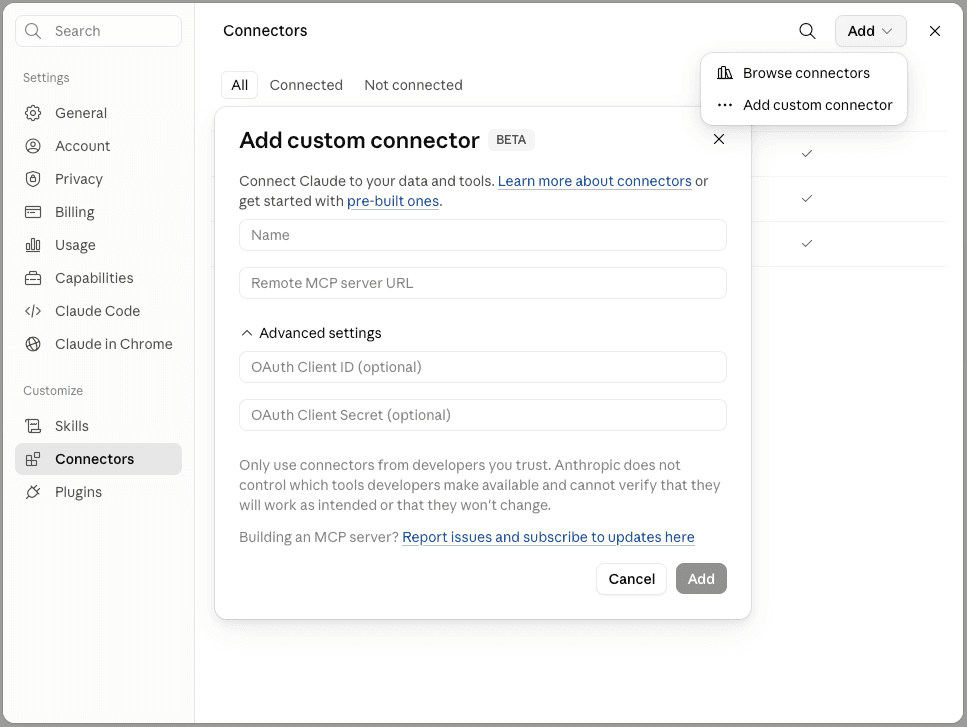
Claude Settings screen with Connectors tab highlighted -
Click Add custom connector.
-
Enter the PiTrade MCP server URL:
https://mcp.pitrade.com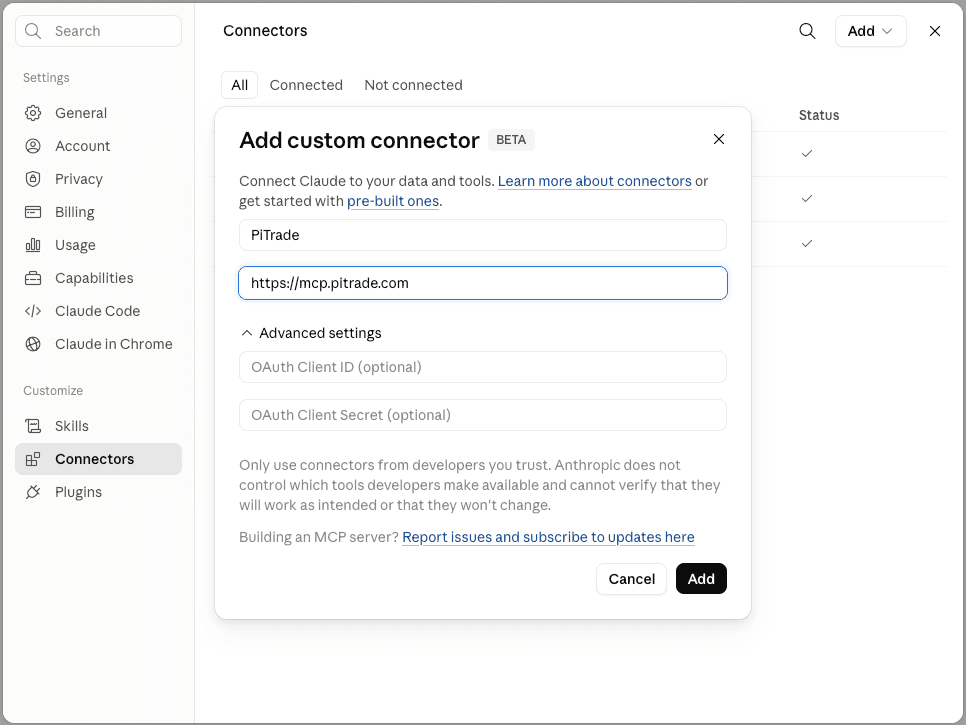
Add custom connector dialog with the PiTrade MCP URL entered -
Claude redirects you to PiTrade's login screen. Log in (or you'll already be logged in) and review the permissions Claude is requesting - for example, reading your portfolios versus placing trades.
-
Click Authorize to approve. You're redirected back to Claude, and the connector shows as Connected.
-
Start a new conversation and ask Claude something like "What's my PiTrade wallet balance?" or "Show me my portfolios." Claude calls the PiTrade tools directly and shows you the results.
Questions to get started
Once connected, try asking Claude any of these:
Tips
If you only want Claude to look things up (no trading), approve just the read permissions when prompted - you can always come back and grant more later.
Claude will typically summarize a trade and ask you to confirm before placing it - always read that confirmation before approving.
If Claude reports an authorization error on a tool call, your token may have just expired; try again and Claude will refresh it automatically.
Troubleshooting & FAQ
Custom connectors may not be available on every Claude plan or client version. Check that you're on a supported plan and using an up-to-date version of the Claude app.
Make sure pop-up or redirect blocking isn't interfering, and that you've completed the PiTrade login and approval fully (including any 2FA step) before closing the tab.
Yes - remove the connector from Settings > Connectors in Claude, or revoke it from PiTrade's Account > Security screen. Either one immediately cuts off Claude's access.
Yes. Each connection gets its own access and can be revoked independently.